Taming Tables on Small Screens: A Semantic Approach to Horizontal Overflow
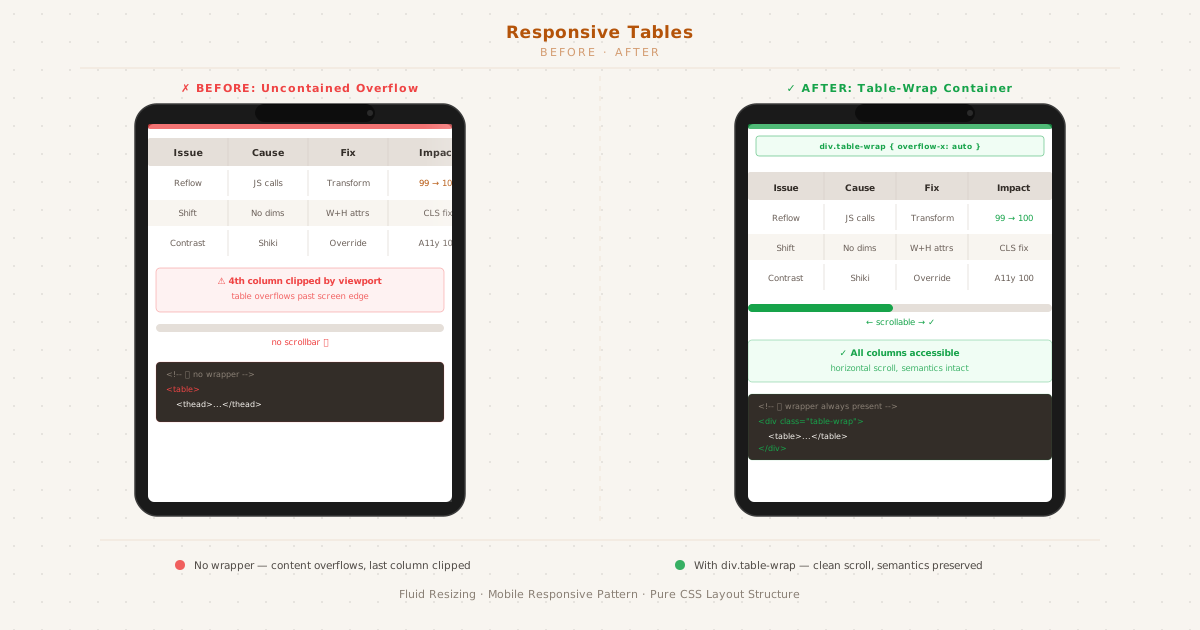
The fix: a wrapper div with horizontal scroll, preserving table semantics
The Problem#
I published a blog post with a four-column comparison table. On desktop, it rendered beautifully — columns evenly spaced, data scannable at a glance. On mobile, the last column (Impact) drifted quietly off-screen. No scrollbar. No wrap. No warning. Just invisible data.
This is the fundamental nature of HTML tables: their minimum width is determined by the sum of their cell content. A cell containing “Performance 99 → 100” needs more horizontal space than a 375px viewport can give it. The browser respects the content — and the content breaks the layout.
The Solutions Landscape#
There are several approaches to making tables responsive. Most of them have a hidden cost.
❌ display: block on the Table#
table { display: block; overflow-x: auto; }This creates a scrollable container, but it destroys table semantics. When a screen reader encounters a <table> with display: block, it no longer recognizes it as tabular data. The relationship between headers and cells — the very reason tables exist in HTML — is lost. [1]
❌ Stack Layout (Card-Style)#
Some frameworks convert each table row into a stacked card on mobile. Each cell becomes a labeled block:
@media (max-width: 600px) {
thead { display: none; }
td::before { content: attr(data-label); }
}This works for simple data sets but fails when:
- Users need to compare values across rows
- The table contains numeric data meant for scanning
- Screen reader users rely on consistent column navigation
❌ JavaScript Plugins#
Plugins like TablePress or custom jQuery solutions add weight, dependencies, and maintenance overhead. For a blog with three to four small tables, a plugin is a missile launcher aimed at a housefly.
✅ The Wrapper Pattern#
The cleanest approach is also the simplest:
<div class="table-wrap">
<table>
<!-- your table -->
</table>
</div>.table-wrap {
overflow-x: auto;
-webkit-overflow-scrolling: touch;
max-width: 100%;
}The <table> keeps its native semantics. Screen readers see a table. The browser sees a table. The layout sees a scrollable container that only activates when the table exceeds the viewport width.
Why This Works Semantically#
The key insight is that overflow is a visual concern, not a structural one. Adding a wrapper div does not change the document outline. It does not alter the accessibility tree’s understanding of the table. It is a pure layout intervention.
Compare:
| Approach | Screen reader | Visual result | Runtime cost |
|---|---|---|---|
display: block on table | ❌ Loses semantics | Scrollable | Zero |
| Stack layout | ⚠️ Loses column nav | Card-like | Zero |
| JS plugin | ✅ Depends on impl | Varies | ~5-50KB |
| Wrapper div | ✅ Preserved | Scrollable | Zero |
Implementation (Generic Pattern)#
The wrapper pattern is best applied during build time, not at runtime. Every static site generator has a mechanism for transforming HTML output:
- Eleventy, Hugo, Astro, Next.js: Use a build-time transform or render function
- WordPress, PHP: Modify the template or use an output buffer
- Hand-rolled HTML: Hardcode the wrapper (lowest effort, works everywhere)
The transform pattern looks like this (SSG-agnostic pseudocode):
// Build-time transform: wrap every <table> in a <div class="table-wrap">
content = content.replace(/<table/g, '<div class="table-wrap"><table>')
.replace(/<\/table>/g, '</table></div>');This runs once during the build. At runtime, there is zero JavaScript, zero layout recalculations, zero overhead.
Accessibility Considerations#
A scrollable region on mobile must be discoverable. Users need to know there’s more content off-screen. The browser’s native overflow: auto provides a scrollbar on most platforms, but there are two things to verify:
The scrollbar is visible. Some UI frameworks hide scrollbars by default (
::-webkit-scrollbar { display: none }). Resist this — your mobile users need to see it.Keyboard navigation works. Users tab to the table, then use arrow keys to scroll horizontally if the table is focusable. If you want the scrollable region to receive keyboard focus, add
tabindex="0"to the wrapper. [2]
Caveat: When the Wrapper Isn’t Enough#
For tables with more than six to seven columns, even horizontal scrolling becomes cumbersome. At that point, consider:
- Reconsidering the data layout. Does this really need to be a single flat table?
- Using a column picker (optional columns shown/hidden by the user)
- Splitting the table into multiple smaller tables
But for the typical blog table — three to six columns of comparison data — the wrapper pattern is all you need.
The Takeaway#
Three lines of CSS and one build-time transform. No framework dependency. No runtime JavaScript. No semantic compromise. The table stays a table, the layout stays responsive, and your mobile readers get to see all four columns.
The fix is trivial. The principle behind it — separating presentation from semantics — is timeless.
The HTML spec explicitly states that
display: blockon a<table>removes its table semantics in the accessibility tree. See the HTML Accessibility API Mappings. ↩︎WCAG 2.1 Success Criterion 2.1.1 (Keyboard) requires all functionality to be operable through a keyboard interface. A focusable scroll container satisfies this for horizontal overflow regions. ↩︎