One Palette for Two Modes: Building a Hero Image Color System
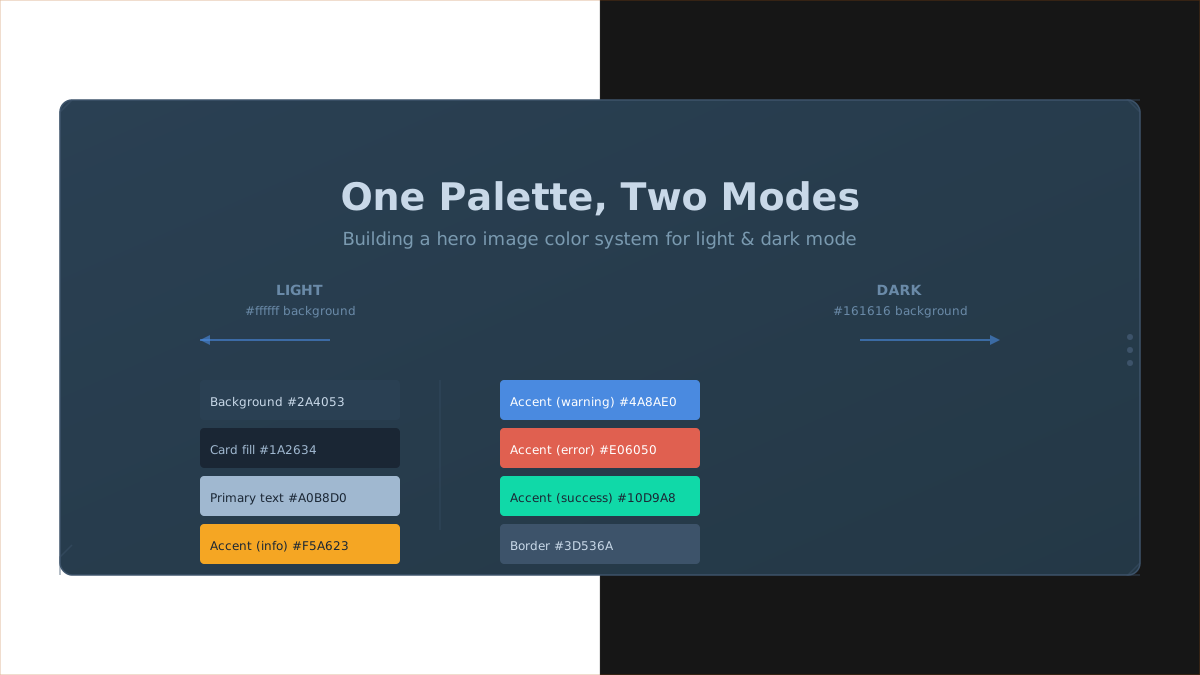
The same hero card, two backgrounds — light and dark. The palette below shows the semantic color system that standardises accent colours across hero SVGs on this blog.
Every hero image on this blog is an SVG embedded via <img>. That means the browser renders it on a transparent canvas, and the page background shows through. In a blog with both light and dark mode, that single image has to survive two completely different backgrounds: #f8f5f0 on the light side, #161616 on the dark side.
When I first started creating hero SVGs, I didn’t think about this. I picked a dark navy, #0F1824, because it looked dramatic and matched the “developer” vibe I was going for. It worked fine in dark mode. In light mode, it looked like a black hole had swallowed my content.
This is the story of how I iterated from that to a systematic palette that works everywhere — and the unexpected lessons I learned about color semantics, glow filters, and the power of a single CSS property.
The Problem: One Image, Two Backgrounds#
The blog’s body background is #f8f5f0 in light mode and #161616 in dark mode. Every hero image sits inside article img, which gets border: 1px solid var(--border) — but that border alone isn’t enough to fix a bad background color.
My original palette was #0F1824 — a very dark navy. Here’s how it performed:
- Dark mode: Acceptable. The image bg and page bg were close enough that the border provided separation. But the inner card fills were even darker (
#0A0F16), making text and icons hard to read. - Light mode: Poor. The dark image block against
#f8f5f0created high contrast, but the content inside the image — the actual illustration — was nearly invisible. Card fills blended into each other. Text didn’t pop.
Worse, every hero SVG used its own arbitrary palette. Orange meant different things in different images. Red was used for both errors and decorative accents. There was no system.
The Obvious Solution That Didn’t Work: Transparent Background#
My first instinct was to remove the background rect entirely — let the SVG be transparent, so the page bg would show through naturally.
That worked in exactly zero browsers.
SVG-in-<img> renders on a transparent canvas, but the page background doesn’t bleed into SVG child elements. The text and shapes inside the SVG still need their own background context. Without a solid backdrop, light-colored text becomes unreadable on a light page, dark shapes vanish on a dark page — and there’s no way to write @media (prefers-color-scheme) inside an <img> SVG.
Transparent background was a dead end. The SVG needed a solid, intentional color.
The Iteration: Finding #2A4053#
I needed a background dark enough to anchor the content in dark mode, but light enough that the image doesn’t look like a black rectangle in light mode.
After several rounds of tweaking, I landed on #2A4053 with a subtle gradient to #243846:
linear-gradient(135deg, #2A4053, #243846)Why this works:
- Against
#f8f5f0:#2A4053is dark enough to create clear separation — the1pxborder keeps it framed, but the bg isn’t black, so the eye reads it as a card, not a hole. - Against
#161616:#2A4053is lighter than the page bg, so the image stays distinct without needing a glowing border. - As a backdrop for content: White text (
#C8D8E8), secondary text (#7A9AB0), and colored accents all have enough contrast against this mid-dark slate. Card fills at#1A2634create depth without disappearing.
The earlier iteration used #243447 — slightly darker and cooler. After publishing new posts, I noticed the images looked too heavy in light mode and leaned bluer than intended. Lightening the gradient to #2A4053 warmed the balance and made the outer frame pop without losing contrast in dark mode. The #35556B grid lines replaced #2D4055 to maintain visibility against the lighter background.
This one change fixed the biggest visual problem. But it also opened the door to something more important: standardization.
Systematizing the Palette#
Once the bg was settled, I mapped every color in every hero image to a consistent role:
| Role | Old (random) | New |
|---|---|---|
| Background | #0F1824 | #2A4053 → #243846 |
| Card fill | varied | #1A2634 |
| Card border | varied | #3D536A |
| Primary text | varied | #A0B8D0 / #C8D8E8 |
| Secondary text | varied | #7A9AB0 |
| Accent — info | varied | #4A8AE0 (blue) |
| Accent — warning | varied | #F5A623 (orange) |
| Accent — error | varied | #E06050 (red, with colored glow) |
| Accent — success | varied | #10D9A8 (green) |
Every accent color has a semantic meaning now. Orange is never used for errors. Red is never used for decorative highlights. When you see blue in a hero image, you know it’s informational; when you see orange, something needs attention.
The Outer Frame: Giving Each Image a Boundary#
While I was standardizing the palette, I also added an outer frame to every hero SVG:
<rect x="1" y="1" width="1198" height="673" rx="12"
stroke="#3D536A" stroke-width="1.5" .../>
<path d="M 1 20 L 1 1 L 20 1" stroke="#F5A623" .../> // top-left corner
<path d="M 1180 1 L 1199 1 L 1199 20" stroke="#F5A623" .../> // top-right
<path d="M 1 655 L 1 674 L 20 674" stroke="#10D9A8" .../> // bottom-left
<path d="M 1180 674 L 1199 674 L 1199 655" stroke="#10D9A8" .../> // bottom-rightThe frame does two things:
- Gives the image its own visual boundary — especially important in light mode, where the dark bg needs a clean edge against
#f8f5f0. - Provides consistent brand identity across every hero image. Orange corner accents at the top, green at the bottom. Three pill dots on the right edge. A subtle outer shadow. These details accumulate into a recognisable visual language.
The Red Glow Problem#
After migrating all hero images to the new palette, I noticed something odd. Both error and success labels used the same SVG glow filter — feGaussianBlur with feMerge. But the green success labels looked significantly brighter than the red error labels.
<!-- Before: transparent blur — red glow barely visible -->
<filter id="redGlow">
<feGaussianBlur stdDeviation="6" result="blur"/>
<feMerge><feMergeNode in="blur"/><feMergeNode in="SourceGraphic"/></feMerge>
</filter>The problem was perceptual. Green #10D9A8 has intrinsically higher luminance than red #E06050. Against a dark background, the same transparent blur produced a much stronger halo for green than for red. The red label looked flat.
The fix was to color the glow itself:
<!-- After: colored flood — red glow now visible -->
<filter id="redGlow">
<feGaussianBlur stdDeviation="6" result="blur"/>
<feFlood flood-color="#E06050" flood-opacity="0.7" result="color"/>
<feComposite in="color" in2="blur" operator="in" result="tintedBlur"/>
<feMerge><feMergeNode in="tintedBlur"/><feMergeNode in="SourceGraphic"/></feMerge>
</filter>The feFlood fills the blur region with actual red, so the glow is coloured — not just a transparent halo of the text. This brought the red glow visually in line with the green.
Same technique works for any dark accent colour, by the way. If I ever add a blue glow, I’ll do the same thing.
The CSS Glue#
All of this work in the SVG itself would be pointless without two lines of CSS:
article img {
border: 1px solid var(--border);
box-shadow: 0 2px 10px rgba(0,0,0,0.07);
}--border resolves to #c9c4bb in light mode and #505050 in dark mode. That thin border is what separates the hero image from the page background — especially in light mode, where #2A4053 against #f8f5f0 needs a clean transition. The subtle box-shadow adds depth without calling attention to itself.
Without it, the #2A4053 image looks like a floating cutout. With it, the image snaps into place as a deliberate design element.
Not every hero image on this blog uses #2A4053. Terminal-window SVGs use #161616 with an amber dot grid — the dark background carries the terminal metaphor, and amber provides contrast against both light and dark page backgrounds. Tutorial-style SVGs use a light #fafafa base with a dot pattern, keeping the illustration airy and letting the page layout provide the dark-mode anchor. The #2A4053 approach described here is for card-style heroes — where content needs a solid, neutral anchor between two vastly different page backgrounds. Choose the strategy that fits the metaphor.
Since the initial publication, the light background shifted from #ffffff to #f8f5f0 — a warm off-white. The change wasn’t aimed at hero images, but it improved them across the board. Card-style heroes (#2A4053) still read as deliberate cards — the border frames them. Terminal-style heroes (#161616) feel less harsh; the dark block against warm off-white is easier on the eyes than against stark white. Light-bg illustrations (#fafafa) no longer float — the warm page tone gives them a natural home. And pure white elements inside SVGs gain a subtle distinction they never had against a pure white page. A background that works with every hero type wasn’t the goal — but it’s the result.
Color Semantics as a Decision Framework#
The most valuable outcome of this process wasn’t the palette itself — it was the decision framework behind it:
- Orange (
#F5A623): Warning, attention, highlight. Used for labels like “before” panels, or values that need notice but aren’t broken. - Red (
#E06050): Error, failure, broken state. Used for BROKEN sections, error messages, and failure paths. - Green (
#10D9A8/#4DC896): Success, working path, after state. Used for fixed sections, correct paths, and results. - Blue (
#4A8AE0): Info, neutral technical content. Used for reference labels and neutral data.
Before this system, I’d pick a colour for each image based on what “felt right.” The result was inconsistency. Now, when I create a new hero SVG, I reach for the palette first — the layout follows.
What I Learned#
- A single dark palette can work in both modes — as long as you have a CSS border to bridge the gap. The SVG doesn’t need to know about the page background.
- The outer frame matters more than I thought. It’s the visual handshake between the image and the page. Without it, the image floats. With it, the image belongs.
- Colour glow filters need coloured flood for dark accents. A transparent blur works for bright colours, but dark colours (like red) drown against a dark background.
feFloodfixes this. - Systematic palette is easier to maintain than intuitive choices. When every image uses the same semantic colours, you never second-guess whether a particular accent means warning or error.
- The best design system isn’t the one you plan — it’s the one you discover through iteration.
This entire site is open source on GitHub. This post is part of a series on the terminal redesign.